Add New Job In The WP Job Portal!
The Add Job form in WP Job Portal allows employers to easily create and publish job listings in a structured and professional way. When a user opens the form, they are guided through different fields where they can enter all the necessary job details. This includes the job title, job description, company name, job type (full-time, part-time, Internship), and location. With clear fields, structured input, and flexible options, it helps ensure that each job listing is professional and easy to understand. As a result, employers can attract the right candidates, while job seekers can easily find and apply for jobs that match their skills and experience.
One of the most important sections of the Add Job form is the job description area. Here, employers can clearly explain what the job involves and what kind of candidate they are looking for. For example, if a company is hiring a “Digital Marketing Specialist,” they can describe responsibilities like managing social media campaigns, running ads, and analyzing performance metrics. They can also list requirements such as “2+ years of experience” or “knowledge of SEO and Google Ads,” helping applicants quickly determine if they are a good fit.
This step-by-step guide will explain the process of posting jobs, making it easy for you to add both free and paid job submissions. So let’s get started!
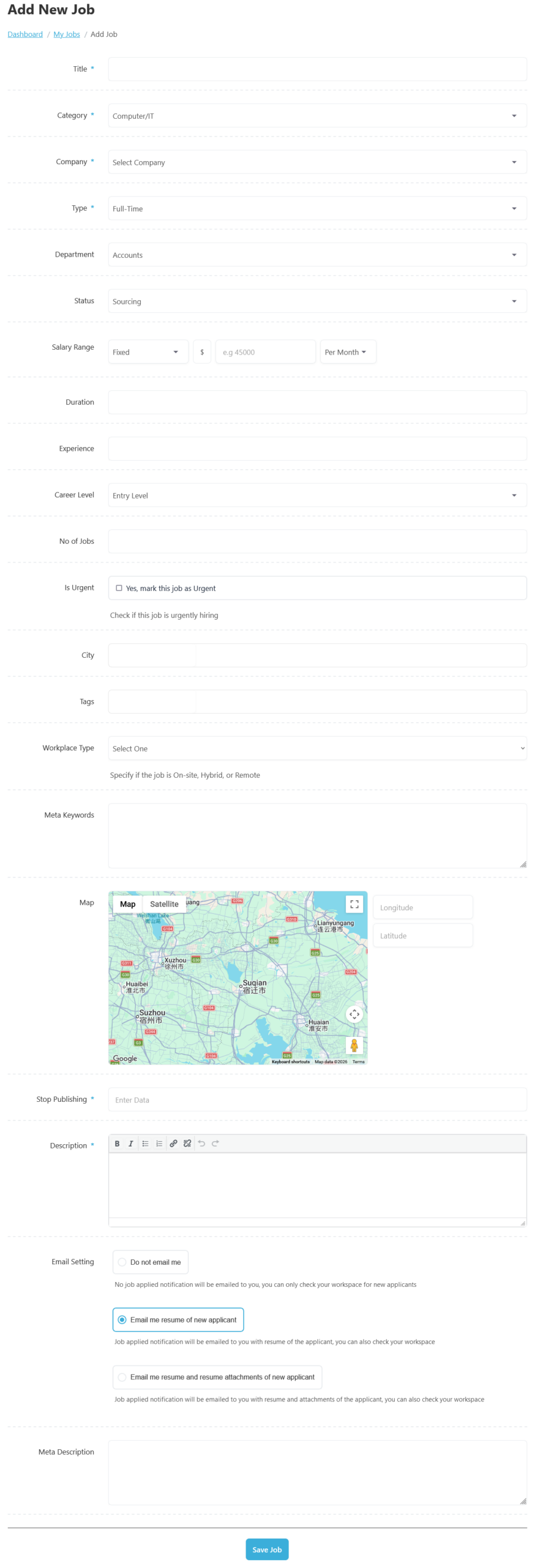
To access the Add New Job page, from your employer dashboard, navigate to the Employer Dashboard > Dashboard Menu > Add Job to start creating jobs effectively. On the ‘Add Job’ form, we will provide all the necessary details for posting a job. The Add New Job form in WP Job Portal is designed to help employers create detailed and professional job listings step by step. As shown in the form, the process starts with basic information such as the Job Title, Category, Company, and Job Type. These fields are essential because they define the core identity of the job.
Job Title
The Job Title is the main name of the position you are offering. It should be clear, specific, and commonly used in the industry so that candidates can immediately understand the role. A well-written job title helps your listing appear in search results when users type relevant keywords, increasing visibility and attracting the right applicants.
Category
The Category helps organize your job into a specific industry or field. In the form, you can select a category such as “Computer/IT,” “Marketing,” “Accounting,” or “Customer Service.” This allows job seekers to filter jobs based on their expertise. For instance, if a candidate is only interested in IT jobs, they will browse the “Computer/IT” category, and your job will appear there if you selected it correctly.
Company
The Company field allows you to select which company is offering the job, which is important if you manage multiple companies. All available companies are listed in the drop-down menu.
Types
In WP Job Portal, Job Types define the nature of employment you are offering. Selecting the correct job type helps job seekers quickly understand the work arrangement and filter jobs based on their preferences. It also ensures that your job listing reaches the most relevant candidates. The most common job type is Full-Time, which is used for permanent positions where employees work standard working hours, usually 8–9 hours per day. Another important type is Part-Time, which is suitable for roles that require fewer working hours. This is ideal for students, freelancers, or individuals looking for flexible schedules. Similarly, Internship positions are used for fresh graduates or students who want to gain experience, such as a “Marketing Intern” for 3 months.
Department
In the WP Job Portal, the Job Department field is used to categorize a job within a specific functional area of a company. It helps organize job listings internally and allows job seekers to better understand which part of the organization the role belongs to. By selecting the correct department, employers can make their job postings more structured and easier to navigate. The Job Department typically represents divisions such as Accounts, Human Resources (HR), IT, Sales, Marketing, Customer Support, and more.
Job Status
In WP Job Portal, the Job Status field is used to define the current stage of a job listing. It helps employers manage their hiring process and lets job seekers know whether a position is open, in progress, or no longer accepting applications. This field is important for keeping job listings accurate and up to date.
Salary Range
In WP Job Portal, the Salary Range field is used to specify how much you are offering for a particular job. It gives job seekers a clear idea of the expected compensation before they apply, which helps attract the right candidates. The salary can be fixed or a range.
Duration
In the WP Job Portal, Duration is useful for contract or temporary jobs, such as “6 Months” or “1 Year.
Exprience
In the WP Job Portal, the Experience field defines the required experience level, such as “2–3 Years,” ensuring only qualified candidates apply. For instance, a senior developer role may require 5+ years of experience with a higher salary range.
Career Level
The Career Level field in WP Job Portal is used to indicate the level of experience, responsibility, and seniority required for a job position. It helps job seekers quickly determine whether a role matches their professional background and career stage. By selecting the appropriate career level, employers can attract candidates with the right qualifications and expectations. Career Level can be Entry Level, Mid Level, or Senior Level, helping candidates quickly assess suitability.
Number Of Jobs
The Number of Jobs indicates how many positions are available, such as 5 vacancies.
Is Urgent
The Urgent Job option in WP Job Portal is used to highlight job vacancies that need to be filled quickly. When a job is marked as urgent, a “URGENT” badge appears on the job listing, making it stand out from regular job postings.
City
In the WP Job Portal, the Job City field is used to specify the exact location where the job is based. This helps job seekers quickly identify opportunities in their preferred area. When posting a job, employers can select or enter a city.
Tags
Job Tags are keywords that describe the job in more detail and improve searchability within the portal. Tags can include skills, job features, or special conditions such as “Remote,” “JavaScript,” “Night Shift,” “Sales,” or “Office-Based.” Job Tags also enhance the user experience by allowing job seekers to discover jobs through related keywords. Even if a candidate does not search by exact job title, they might find your listing through tags.
Workplace Type
The Workplace Type field defines where and how employees are expected to perform their work. This information helps job seekers understand the working arrangement before applying. Common workplace types include:
- On-Site – Employees work from the company’s physical office or workplace.
- Remote – Employees work from home or any location outside the office.
- Hybrid – Employees split their time between the office and remote work.
Meta Keywords
Meta Keywords are used for SEO, helping your job appear in search engine results.
Map
The Map feature allows you to pinpoint the exact job location using latitude and longitude, giving applicants a clear idea of where the job is based.
Stop Publishing
Stop Publishing lets you set a deadline (e.g., 30 April 2026), after which the job will automatically be unpublished.
Description
One of the most important sections of the Add Job form is the job description area. Here, employers can clearly explain what the job involves and what kind of candidate they are looking for. The Description field is where you provide complete job details, including responsibilities, requirements, and benefits.
Email Settings
In the Email Settings section, employers can choose how they want to receive notifications about new job applicants. There are three options available:
-
- First, do not email me. With this option, no job application notifications will be emailed to you.
- The second option, selecting this option, will ensure that you receive a job application notification via email, including the applicant’s resume of the applicant.
- The third option provides the most comprehensive notifications. You’ll receive an email notification with both the resume and any additional attachments submitted by the applicant.
Meta Description
Lastly, add a meta description that summarizes the job and is optimized for search engines.
Once all these details are filled in, you can save the job, and it will be posted on your job portal.