Job Search In The WP Job Portal!
The Search Job feature in WP Job Portal helps job seekers quickly find relevant job opportunities using advanced search filters. From the Job Seeker Dashboard, users can open the Search Job page and enter specific criteria to narrow down job listings according to their preferences. This makes it easier to find suitable jobs without browsing through hundreds of vacancies.
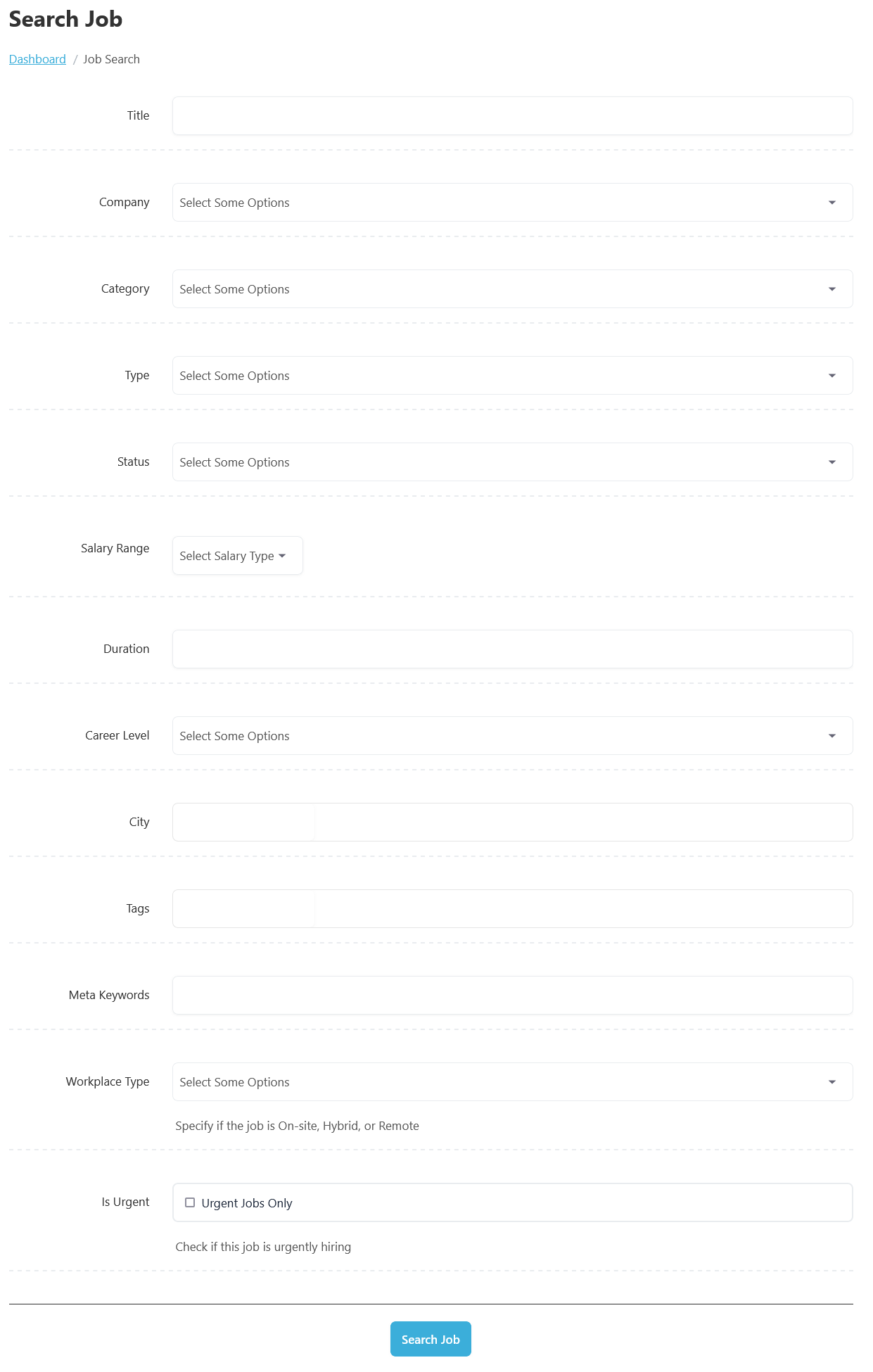
The search form includes multiple filters such as Job Title, Company, Category, Job Type, Salary Range, Career Level, City, Tags, and Keywords. For example, a user looking for a “Software Engineer” position can enter the job title, select the “Information Technology” category, choose “Full-Time” as the job type, and specify a preferred city to receive more targeted results. To search for jobs from your Jobseeker dashboard, follow these steps:
- Access Jobseeker Dashboard:
- Navigate to the Jobseeker Dashboard.
- Select Search Job:
- Click on Search Job to open the job search form.
- Define Search Criteria:
- Title: Enter the job title you are looking for.
- Company: Select one or more companies from the dropdown menu.
- Category: Choose a job category from the dropdown menu.
- Type: Select the job type (e.g., Full-Time, Part-Time, Internship).
- Status: Choose the job status from the dropdown menu.
- Salary Range: Select the desired salary range.
- Duration: Specify the job duration in the input field.
- Career Level: Select the appropriate career level (e.g., Entry-Level, Senior).
- City: Enter the city where you are searching for jobs.
- Tags: Add relevant tags related to the job.
- Meta Keywords: Enter meta keywords for more specific search results.
- Workplace Type: The Workplace Type field defines where and how employees are expected to perform their work. This information helps job seekers understand the working arrangement before applying. Common workplace types include: On-Site, Remote, and Hybrid.
- Is Urgent: The Urgent Job option in WP Job Portal is used to highlight job vacancies that need to be filled quickly. When a job is marked as urgent, a “URGENT” badge appears on the job listing, making it stand out from regular job postings.
- Initiate Search:
- After filling out the criteria, click the Search button.
- The job listings that meet your specified criteria will be displayed.
Once the search criteria are entered, clicking the Search button displays all matching jobs. Each result typically shows key information such as the company name, job title, salary, location, and employment type, helping candidates compare opportunities quickly before viewing full job details.
Administrators can customize the search experience by managing the available search fields. They can control which fields appear on the search form, enable or disable specific filters, and rearrange the field order to match the requirements of their job board. This flexibility allows every website to create a customized job search experience for its users.