
< All Topics
Print

Add Company In The WP Job Portal!

The Add Company feature in WP Job Portal allows employers to create a company profile that can be used while posting jobs on the website. This feature helps employers present their organization professionally by adding company details such as the company name, logo, contact information, website, location, and description. Once a company profile is created, employers can easily select it when publishing job listings instead of entering company details repeatedly.

This step-by-step guide will explain the process of posting a company. So let’s get started!
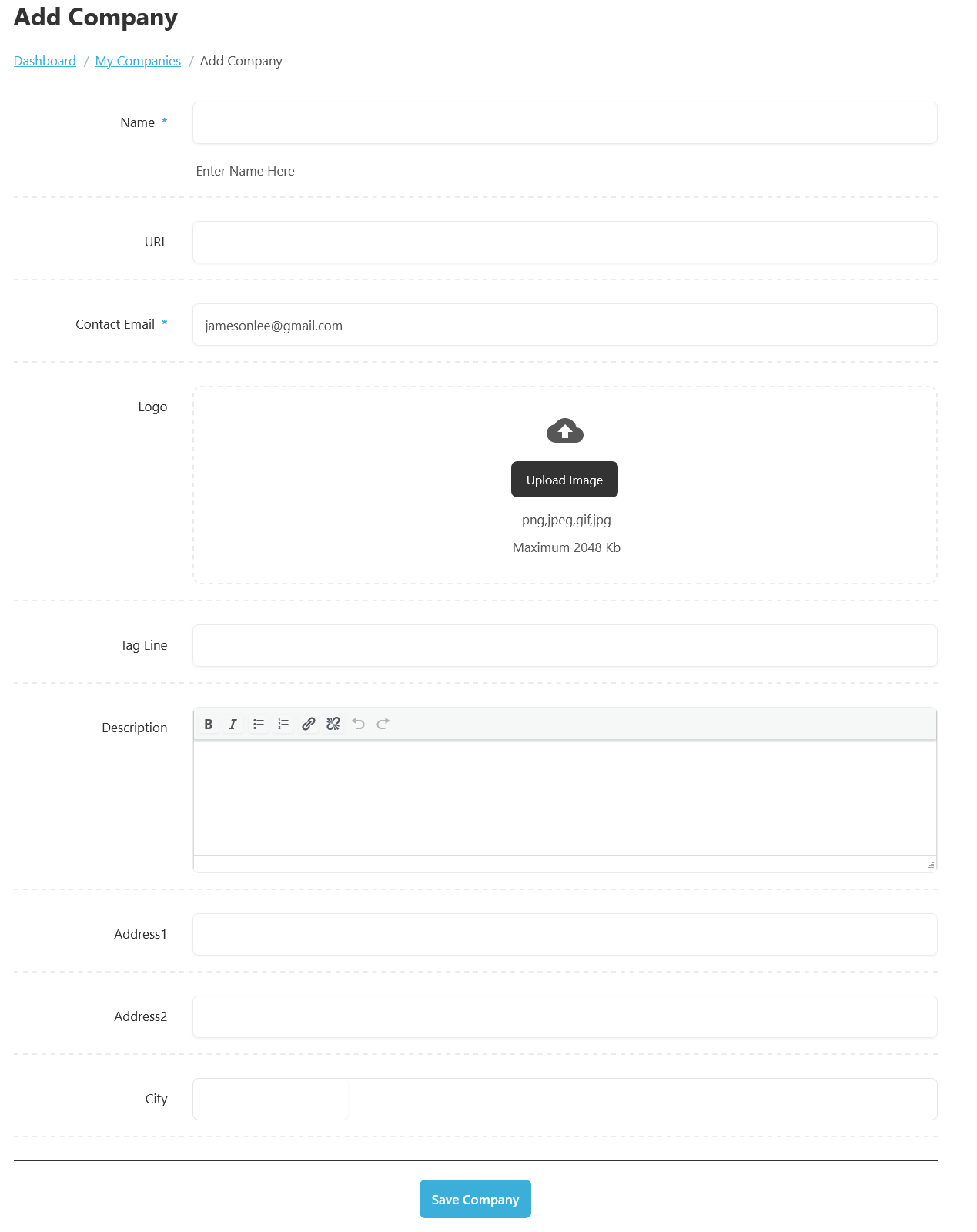
From your employer dashboard, navigate to the Employer Dashboard > Add Company to start the process of creating a company effectively. On the ‘Add Company’ form, we will provide all the necessary details for posting a company.

When adding a company, employers are typically required to enter basic information such as the Company Name, Email Address, Website URL, and Location. For example, an employer creating a profile for “Innovative Solutions Crop” can upload the company logo, add the official website, and specify the office location in California, United States. These details are then displayed on the company profile page and associated job listings.

  • The Company Name field in WP Job Portal is used to enter the official name of the company or organization that is posting jobs on the portal. This is one of the most important fields in the company profile because it identifies the employer to job seekers and appears throughout the system, including company listings, job postings, and company detail pages.
  • The URL field allows employers to provide the company website.
  • The Logo Upload feature allows employers to upload a company logo in formats such as PNG, JPEG, GIF, or JPG. The company logo is displayed on company profiles and job listings, helping improve branding and recognition.
  • Description sections help employers explain their company’s mission, services, and work culture.
  • Address1, Address2, and City, allowing employers to specify their office location. This information is useful for candidates who want to know where the company operates.

Once all details are entered, the employer can click the Save Company button to create the company.


Setting Up Paid Submissions-Membership (Admin Side)

Now let’s walk through the process of posting companies with paid submissions.

Start by navigating to the Admin Dashboard–> Dashboard Menu–> Configurations–> Package Settings–> Paid Submission.

In the paid submission section, we’ll start by selecting the submission type. WP Job Portal offers two types: paid submissions Per Listing and Membership. Let’s proceed with the membership plan first. After selecting the membership plan, let’s proceed to set up a package for this plan. Save your configurations.

Add Package (Admin Side)

Now navigate to the Admin Dashboard–> Dashboard Menu–> Packages–> Add New Package

On this page, create your package. Since we are creating this package specifically for company postings, we will detail the relevant information. After explaining the basic details of the package, move to the company section and specify the number of company postings. Be sure to fill in all required fields marked with an asterisk. Once completed, set the package status to “publish” and save the package. The company-specific package has been created.

Add Company With Paid Submission-Membership

Now, let’s head to the employer dashboard to proceed with a paid company submission by purchasing a package. Simply click on “Add Company” in the menu. Once the membership plan is enabled, you will see the requirement to buy a package for company posting. Click on the “Buy Package” button to continue.

Packages List Page

This action will direct you to the packages list page. Simply click the “Buy Now” button and a popup window will appear with the payment method options you have enabled on your site. Choose your preferred payment method and click “Buy Now.”

Select Payment Method

After completing the payment, the package has been purchased. Now create the new company.

Add New Company

The “Add New Company” form will open. The package details about the company are displayed on the form, showing the total number of companies available to add, the remaining companies, and the company expiration time. Now, proceed to fill in the details about the company. Once you’re done with the information, click ‘Save Company’ to create and publish the company. The company has been created with paid submission.

Setting Up Paid Submissions-Per Listing Mode (Admin Side)

Now let’s walk through the process of posting companies with paid submissions.

Starting by navigating to the Admin Dashboard–> Dashboard Menu–> Configurations–> Package Settings–> Paid Submission–>Submission Type choose the “Per-Listing”.

Now, let’s walk through the process of paid company submissions using the per-listing mode. Let’s proceed with the per-listing mode. After selecting the per-listing mode. When using the per-listing mode, payment will be charged for each company submission. Next, we will set the currency and price for the per-company submission. Once you’ve set the price per company submission, save your configuration settings.

Add Company With Per Listing Mode

Now we proceed with the steps involved in adding new paid company submissions with the per-listing mode. Start by filling out the company creation form with all the essential details. Once you’re done, hit the ‘Save Company’ button.

You’ll notice that the company has been created but is not published due to paid submissions. To get your company listing live, we’ll need to go through the payment process.

Select Payment Method

Click on ‘Proceed to Payment’, triggering a pop-up allowing you to select a payment method to pay for this company submission. After selecting your preferred payment method and completing the payment, the company will be published. By following these steps, you’ll be able to effectively manage paid company submissions using the per-listing mode.