Add a Company In The WP Job Portal!
The Add Company form in WP Job Portal allows the admin to easily create and publish company listings in a structured and professional way. When an admin opens the form, they are guided through various fields to enter all the necessary company details. This includes the Company Title, URL, Contact Email, Logo, Description, and location. With clear fields, structured input, and flexible options, it helps ensure that each company listing is professional and easy to understand. As a result, the admin can attract the right candidates. Now, let’s walk through the step-by-step process of adding a company from the admin.
Add New Company
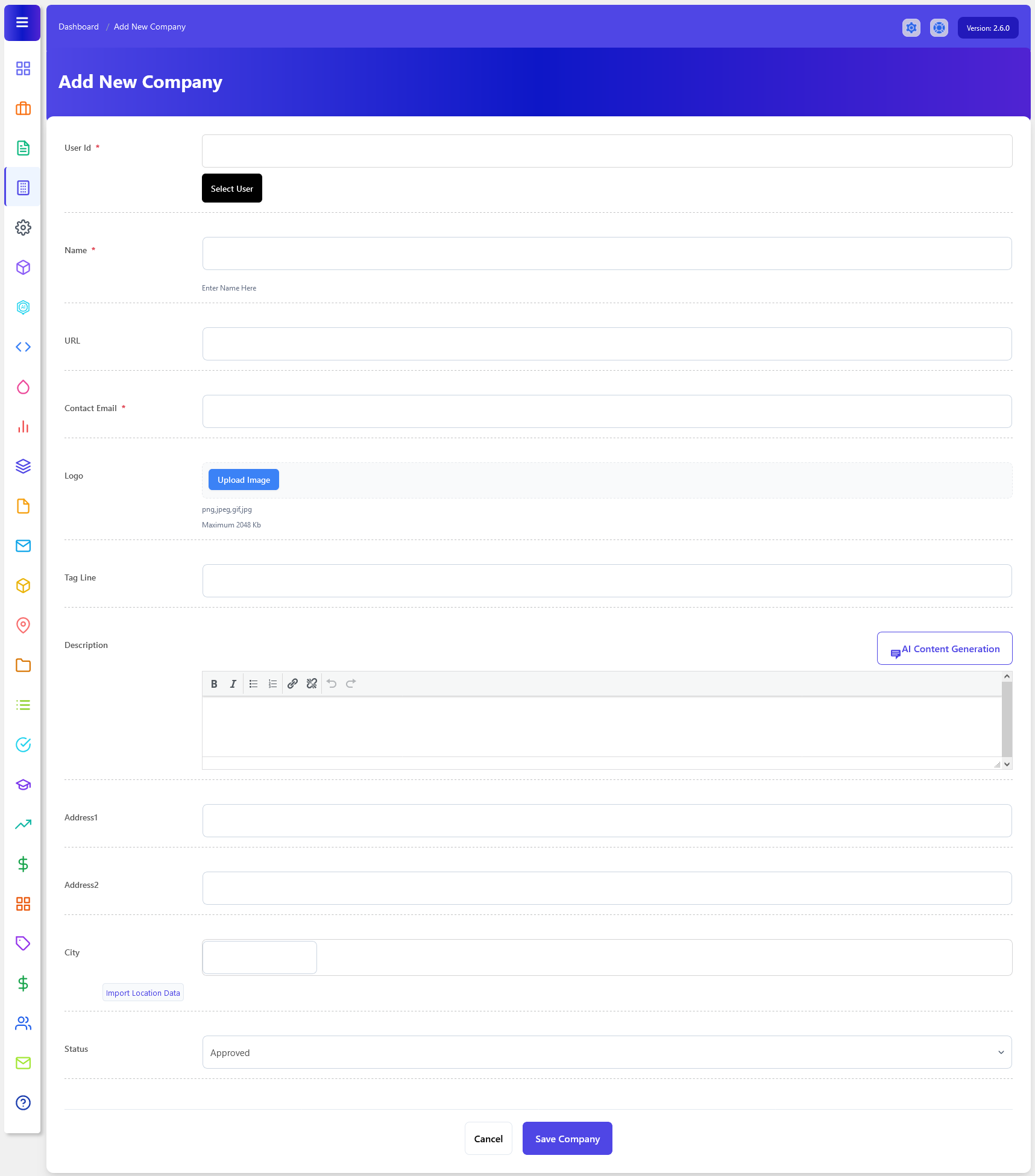
Now, let’s walk through the step-by-step process of adding a company from the admin end. From your admin dashboard, navigate to Admin Dashboard > Dashboard Menu > Companies > Add New Company to start creating companies. On the ‘Add Company’ form, you will provide all the necessary details for posting a company.
The Add Company feature in WP Job Portal allows administrators to create and manage company profiles directly from the admin panel. This feature is useful when administrators want to add companies on behalf of employers or maintain company records manually. By using the Add Company form, admins can enter complete company details, including company name, website, contact information, logo, description, and location.
Now, let’s go through the details required to add a company from the admin perspective. We’ll cover each aspect,
Select User Popup
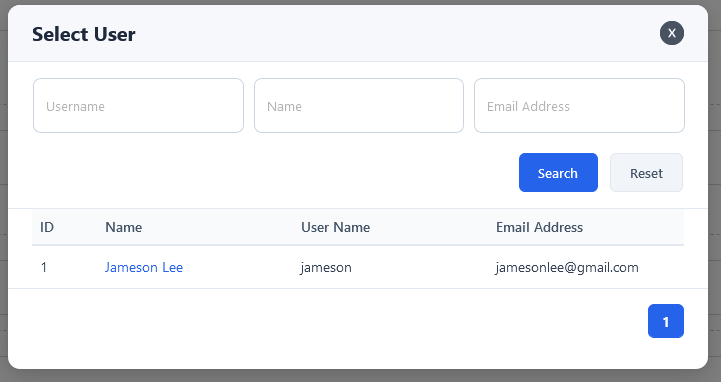
The Select User option in the Add Company form allows administrators to assign a company profile to a specific employer account. This feature is especially useful when the administrator creates companies manually from the admin panel. By selecting a user, the company becomes connected to that employer, allowing them to manage jobs, company information, and applications from their own dashboard.
- User ID is a required field to select a user associated with the company.
- The Company Names a required field where the administrator enters the official business or organization name.
- Administrators can also add the Company Website URL to provide branding information. The website URL allows job seekers to visit the company’s official website for more details
- Administrators can also add the Contact Email to provide communication. The contact email is used for communication related to jobs or applicants.
- The Logo Upload section allows administrators to upload a company logo to improve the visual appearance of the company profile. Supported image formats usually include PNG, JPG, JPEG, and GIF. A professional company logo helps build trust and makes job postings look more attractive to job seekers.
- The Tagline is usually written as a short sentence or phrase that highlights the company’s specialty or business goal.
- Administrators can also add a detailed Company Description to explain the company’s services, mission, and business background.
- Additional fields, such as Address1, Address2, and City, help define the company’s physical location.
- Status is a dropdown to select the status of the company (e.g., Approved, Pending, and Rejected).
The form also includes buttons at the bottom to “Cancel” or “Save Company“. Once all these details are filled in, you can save the company, and it will be posted on your job portal.
AI Content Generation
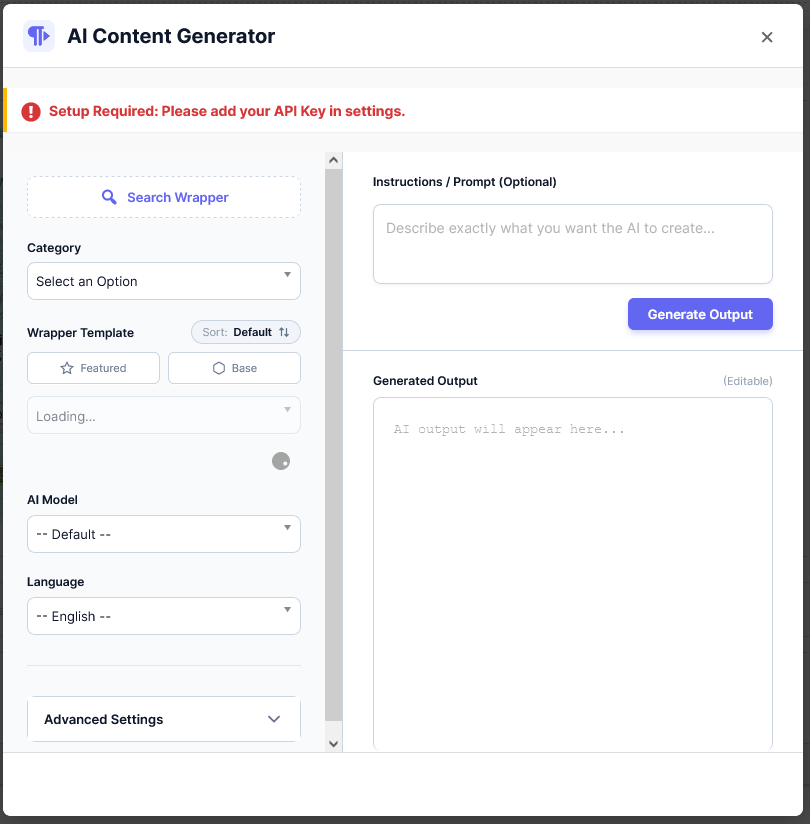
AI Content Generation in WP Job Portal enables administrators and users to generate and improve company-related content using AI.