Add New Job In The WP Job Portal!
The Add Job form in WP Job Portal allows the admin to easily create and publish job listings in a structured and professional way. When an admin opens the form, they are guided through different fields where they can enter all the necessary job details. This includes the job title, job description, company name, job type (full-time, part-time, Internship), and location. With clear fields, structured input, and flexible options, it helps ensure that each job listing is professional and easy to understand. As a result, the admin can attract the right candidates, while job seekers can easily find and apply for jobs that match their skills and experience. Now, let’s walk through the step-by-step process of adding a job from the admin.
Add New Job
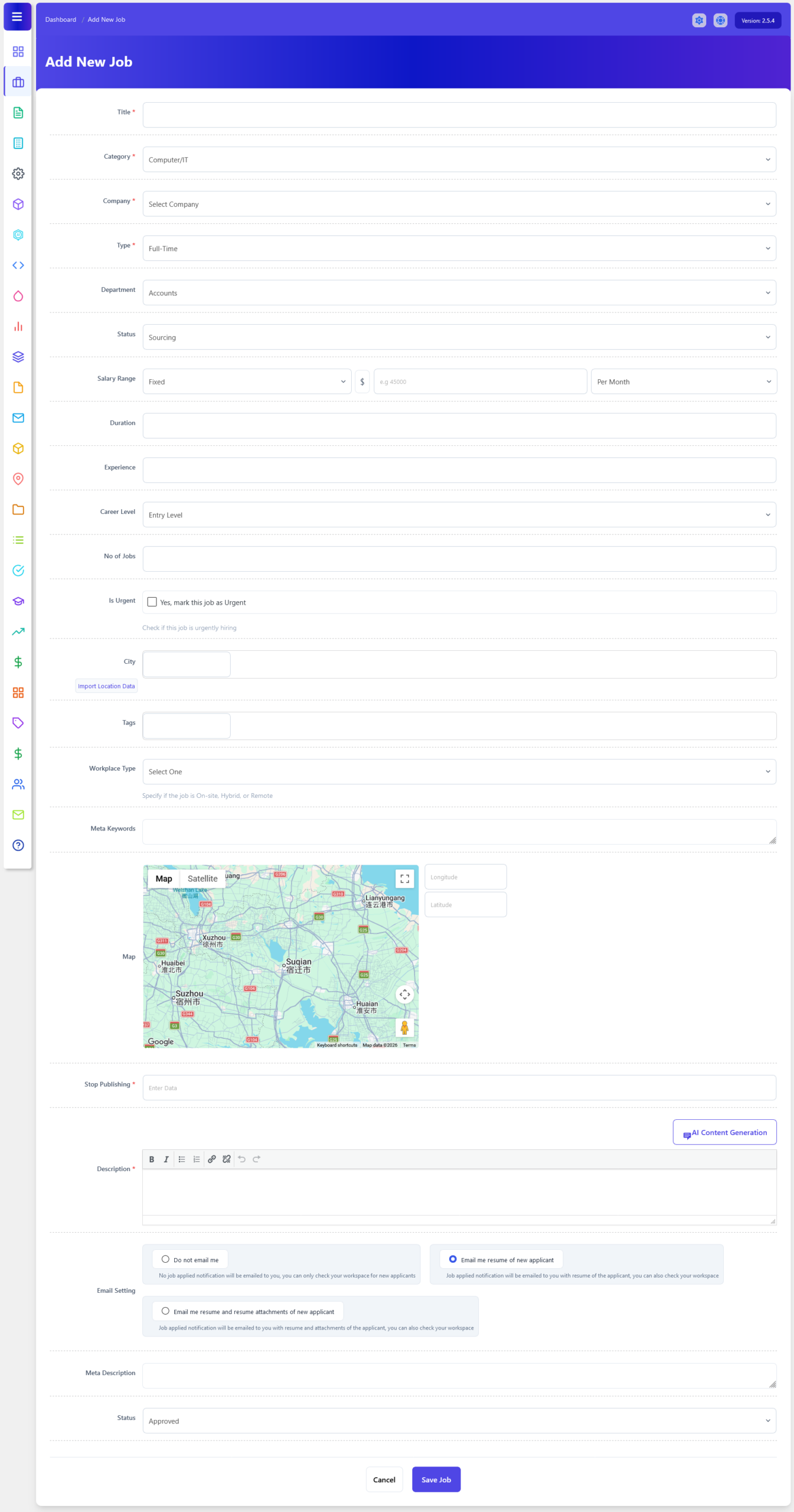
From your admin dashboard, navigate to the Admin Dashboard > Dashboard Menu > Add New Job to start creating jobs effectively. On the ‘Add Job’ form, we will provide all the necessary details for posting a job. Now, let’s go through the details required to add a job from the admin perspective. We’ll cover each aspect,
- Start by providing a descriptive title for the job. The Job Title is the main name of the position you are offering. It should be clear, specific, and commonly used in the industry so that candidates can immediately understand the role.
- Select the appropriate category for the job. The Category helps organize your job into a specific industry or field. In the form, you can select a category such as “Computer/IT,” “Marketing,” “Accounting,” or “Customer Service.”
- Choose the company associated with the job listing. The Company field allows you to select which company is offering the job, which is important if you manage multiple companies. All available companies are listed in the drop-down menu.
- In WP Job Portal, Job Types define the nature of employment you are offering. Selecting the correct job type helps job seekers quickly understand the work arrangement and filter jobs based on their preferences. The most common job types are Full-Time, Part-Time, and Internship.
- In WP Job Portal, the Job Department field is used to categorize a job within a specific functional area of a company. It helps organize job listings internally and allows job seekers to better understand which part of the organization the role belongs to.
- In WP Job Portal, the Job Status field is used to define the current stage of a job listing.
- In WP Job Portal, the Salary Range field is used to specify how much you are offering for a particular job. It gives job seekers a clear idea of the expected compensation before they apply, which helps attract the right candidates. The salary can be fixed or a range.
- In the WP Job Portal, Duration is useful for contract or temporary jobs, such as “6 Months” or “1 Year.
- In the WP Job Portal, the Experience field defines the required experience level, such as “2–3 Years,” ensuring only qualified candidates apply. For instance, a senior developer role may require 5+ years of experience with a higher salary range.
- The Career Level field in WP Job Portal is used to indicate the level of experience, responsibility, and seniority required for a job position.
- The Number of Jobs indicates how many positions are available, such as 5 vacancies.
- The Urgent Job option in WP Job Portal is used to highlight job vacancies that need to be filled quickly. When a job is marked as urgent, a “URGENT” badge appears on the job listing, making it stand out from regular job postings.
- In WP Job Portal, the Job City field is used to specify the exact location where the job is based. This helps job seekers quickly identify opportunities in their preferred area. When posting a job, the admin can select or enter a city.
- Job Tags are keywords that describe the job in more detail and improve searchability within the portal. Tags can include skills, job features, or special conditions such as “Remote,” “JavaScript,” “Night Shift,” “Sales,” or “Office-Based.”
-
The Workplace Type field defines where and how employees are expected to perform their work. This information helps job seekers understand the working arrangement before applying. Common workplace types include:
- On-Site – Employees work from the company’s physical office or workplace.
- Remote – Employees work from home or any location outside the office.
- Hybrid – Employees split their time between the office and remote work.
- The Map feature allows you to pinpoint the exact job location using latitude and longitude, giving applicants a clear idea of where the job is based.
- Stop Publishing lets you set a deadline (e.g., 30 April 2026), after which the job will automatically be unpublished.
- One of the most important sections of the Add Job form is the job description area. Here, the admin can clearly explain what the job involves and what kind of candidate they are looking for. The Description field is where you provide complete job details, including responsibilities, requirements, and benefits.
- In the Email Settings section, employers can choose how they want to receive notifications about new job applicants. There are three options available:
- First, do not email me. With this option, no job application notifications will be emailed to you.
- The second option, selecting this option, will ensure that you receive a job application notification via email, including the applicant’s resume of the applicant.
- The third option provides the most comprehensive notifications. You’ll receive an email notification with both the resume and any additional attachments submitted by the applicant.
- Then, set the job status to ‘approved’ using the status field, enabling administrators to manage the job approval process effectively.
- After setting the status, proceed to save the job. That’s it! The job has been posted on the job portal.
AI Content Generation
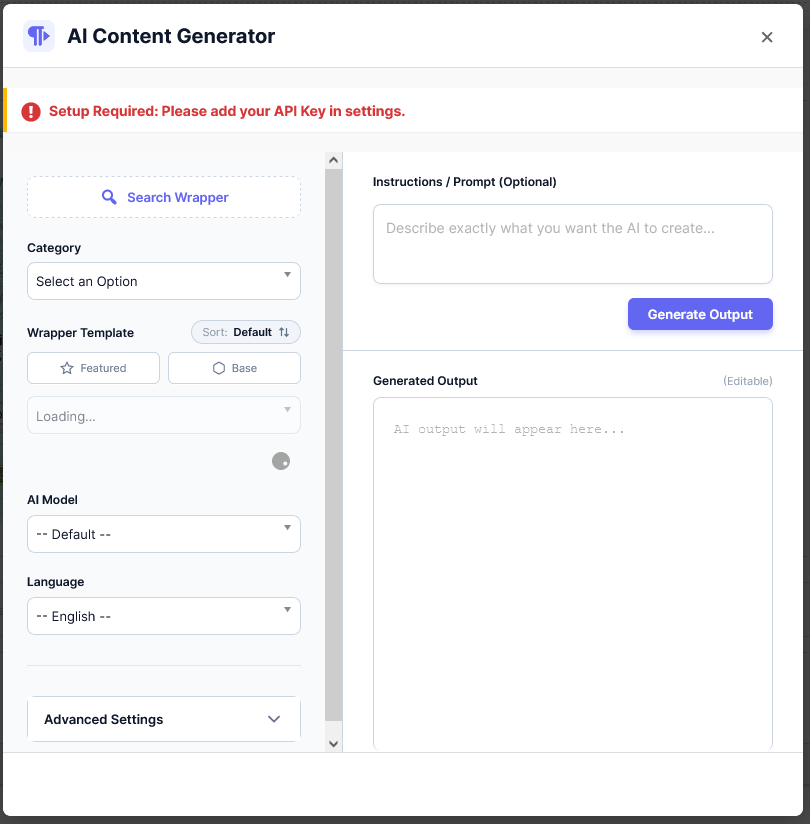
AI Content Generation in WP Job Portal enables administrators and users to generate and improve job-related content using AI.