Jobs In The WP Job Portal!
The “Jobs” section in the Admin Control Panel of WP Job Portal is where the admin can manage all their posted job listings in one place. This page serves as a central dashboard displaying every job the admin has created, along with key details such as job title, company name, location, job type, salary, and posting time. These listings automatically appear on the page.
The Jobs Listing page in WP Job Portal serves as the central hub for displaying all available job opportunities in an organized, user-friendly format. WP Job Portal provides a simple and efficient way for admins to post job opportunities and for job seekers to find and apply for them. Once published, these jobs become visible to registered and guest users, making it easier to reach a large pool of potential candidates in one place.
Jobs
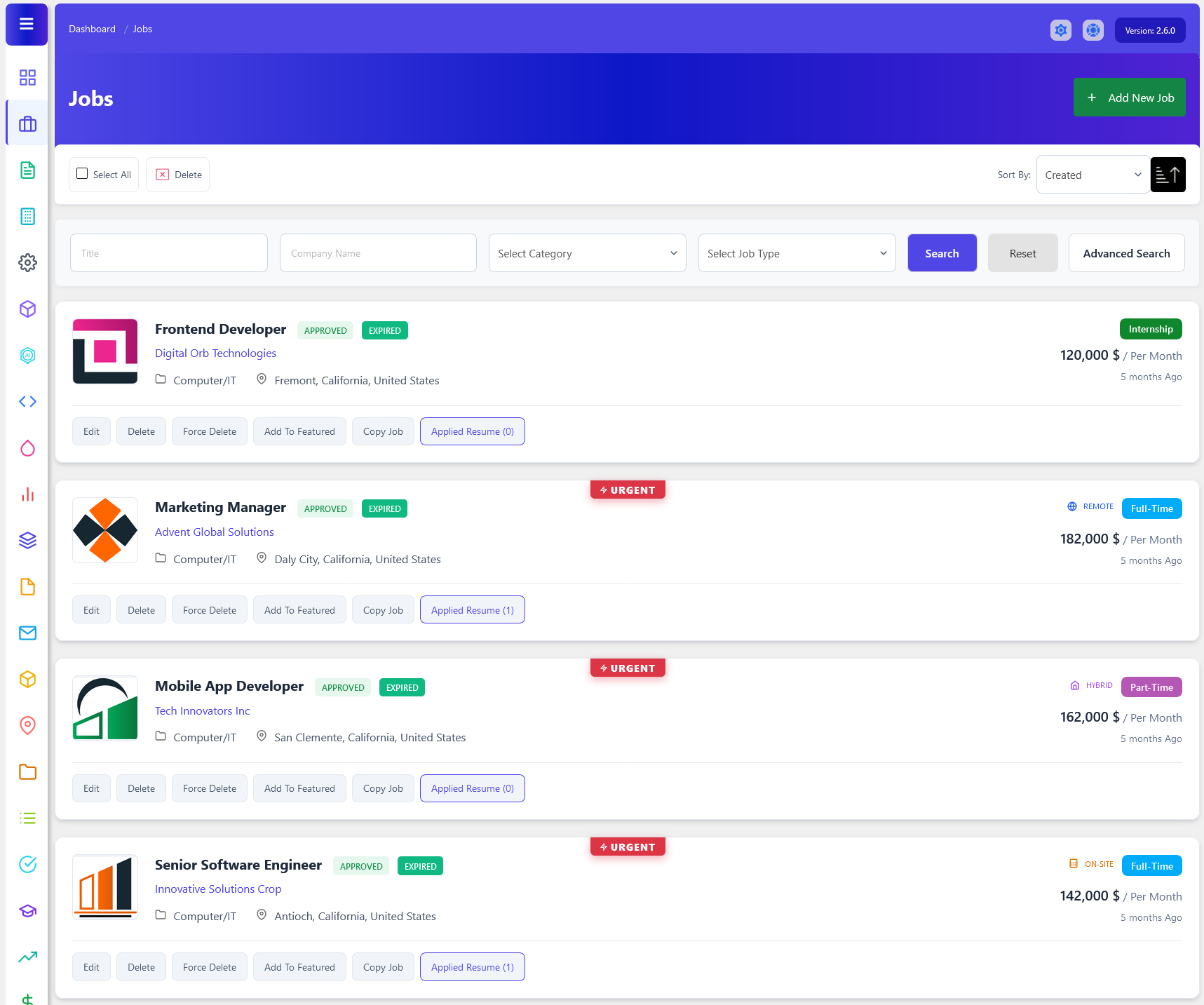
From your admin dashboard, navigate to the Admin Dashboard > Dashboard Menu > Jobs. On the jobs page, you will find various options that the admin can use to manage jobs. It displays a list of jobs added by the admin and the employer. Each job has a company logo, company name, job name, salary, and job status (e.g., “Status: Approved”). It includes a sort options dropdown to sort the job list by creation date or other criteria. There are options to add a new job, search, and filter jobs by various criteria. One of the page’s main functions is job management. Each job listing comes with options like “Edit Job, Delete Job, Force Delete, Add Featured, Copy Job, and Applied Resume. Additionally, there’s an option to “Add New Job” at the top right of the “My Jobs” page.
Search

The Job Listing Search section in WP Job Portal allows employers and administrators to quickly find, filter, and manage job postings. Instead of scrolling through all available jobs, users can use various search criteria to locate specific job listings based on job details, company information, dates, and status. This feature is especially useful when managing a large number of job postings.
The search form includes fields such as Title, Company Name, Category, and Job Type. The Title field allows users to search for jobs by name, such as “Software Engineer” or “Sales Manager.” The Company Name field helps filter jobs posted by a specific company, while Category and Job Type allow users to narrow results based on industry and employment type. For example, an administrator can search for all Computer/IT jobs that are listed as Full-Time positions.
Additional filters are available under the advanced search options, including Location, Date Start, Date End, Status, and Featured Jobs. The Location filter helps find jobs posted in a particular city or region. The Date Start and Date End fields allow users to search for jobs posted within a specific time period. For example, an administrator can view all jobs published during the last month. The Status filter helps identify jobs that are Active, Sourcing, Closed, or Expired.
The Featured checkbox allows the admin to search specifically for jobs that have been marked as featured. Featured jobs are usually highlighted on the job portal to attract more attention from job seekers. This filter is useful when administrators need to review or manage premium job listings separately from standard postings.

This section of the Jobs in WP Job Portal shows a detailed view of an individual job listing, giving the admin full control over a specific job post. In this example, the job “Senior Software Engineer” is clearly displayed, along with important details such as the company name (Innovative Solutions Corp), location (Antioch, California), job type (Full-Time), category (Computer/IT), salary, and the posting date.
Job Actions
Edit Job
Editing a job in WP Job Portal is a simple yet essential feature that allows administrator to update their job listings at any time. This is especially useful when you need to make corrections, update job requirements, or adjust details like salary or location after posting. The system is designed to give the admin full flexibility while ensuring the job listing remains accurate and up to date for candidates. Once clicked, the system opens a detailed job form similar to the one used during job creation.
Delete
Deleting a job in WP Job Portal is a simple but important feature that allows the admin to remove job listings that are no longer needed. This is useful when a position has been filled, expired, or posted by mistake. Keeping your job listings clean and updated ensures a better experience for job seekers and maintains the professionalism of your platform.
Force Delete
Force Delete completely removes the job and its associated data from the database. This feature helps maintain a clean and organized system by eliminating unnecessary records and reducing database clutter.
Add To Featured
Adding a Featured Job in WP Job Portal is a powerful way to highlight specific jobs and give them more visibility on your job board, so it appears more prominently on the Jobs Listing page. Featured jobs are typically displayed at the top of the Jobs Listing page or in a dedicated section, making them more noticeable to job seekers. They may include labels like “Featured” or be highlighted with special styling.
Copy Job
Copying a job in WP Job Portal is a highly useful feature that allows the admin to duplicate an existing job listing with just one click. This saves time and effort, especially when hiring for similar roles or posting the same job in multiple locations. Instead of creating a new job from scratch, an admin can reuse an existing template and make minor adjustments as needed.
Applied Resume
The Applied Resumes feature in WP Job Portal allows the admin to view how many candidates have applied and manage all candidate applications for their posted jobs in one place. Whenever a job seeker applies for a position, their resume and profile details are automatically stored and linked to that specific job. This makes it easy for the admin to track who has applied and review candidates efficiently.