Job Approval Queue In The WP Job Portal!
The Job Approval Queue in the WP Job Portal is a moderation feature that allows administrators to review job postings before they are published on the website. When job auto-approval is not enabled, newly submitted jobs are placed in a waiting queue and remain unpublished until an administrator approves them. This helps maintain the quality, accuracy, and professionalism of job listings on the portal.
Configure Job Auto-Approval

Start by navigating to the Admin Dashboard > Dashboard Menu > Configurations > Jobs > Job Auto Approve. If the job auto-approve is set to “YES/Enable,” jobs will not require administrator approval for publishing. However, if you set the job auto-approve to “NO/Disable,” then jobs will require admin approval before being published.
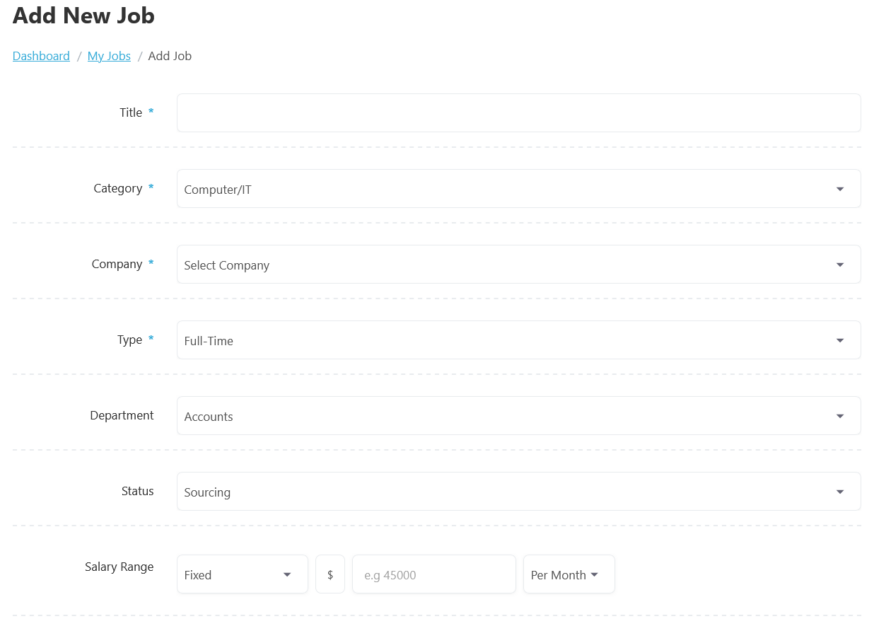
First, let’s start with the job creation process on the Add Job form. We will create the job by adding the necessary details. Once you have completed filling in the details, click the Save Job button. The job has been successfully saved.
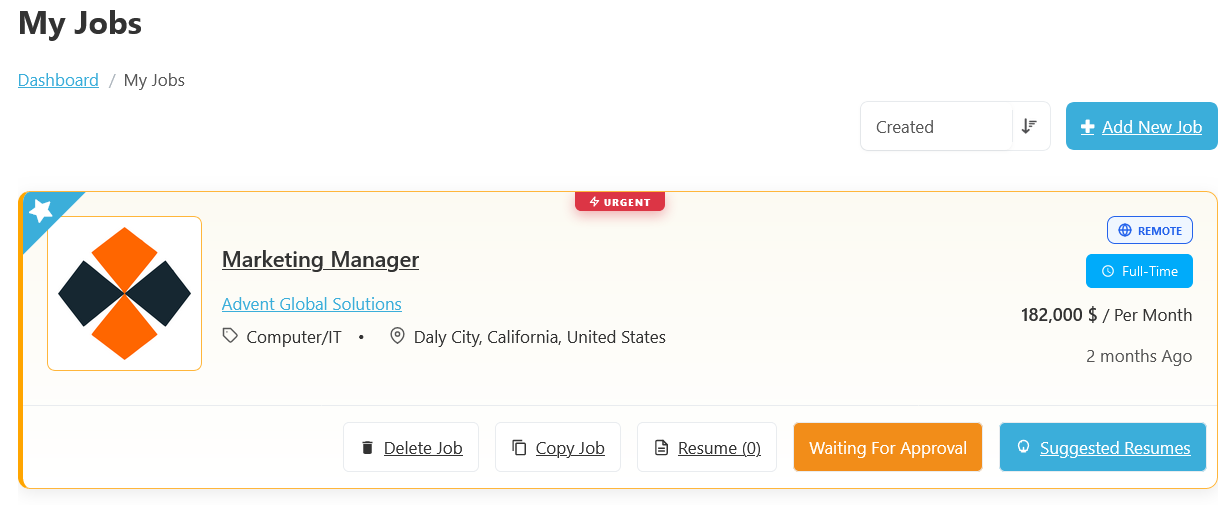
The Waiting for Approval status in WP Job Portal indicates that an employer has submitted a job, but it has not yet been approved by an administrator. During this stage, the job remains unpublished and is not visible to job seekers. This approval process helps ensure that all job postings meet the website’s quality standards and content policies before they are made public.
When an employer creates a new job and submits it, the job may automatically enter the approval queue if job auto-approval is disabled in the portal settings. The status of this job is marked as “Waiting For Approval,” indicating that while the job has been created, it is not yet published due to pending administrator approval. Administrator approval is required to make the job listing live.
Jobs Approval Queue
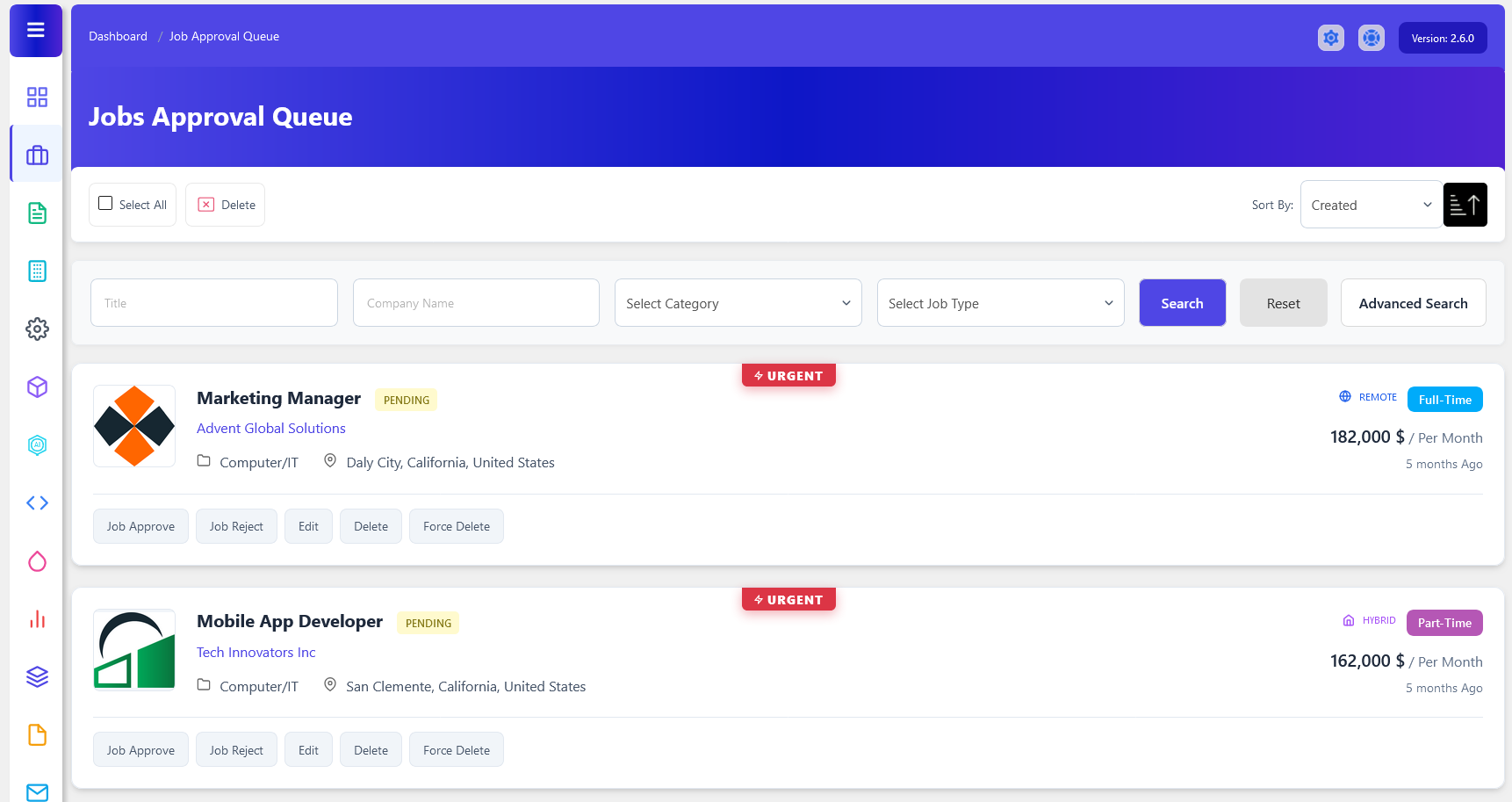
To access the job approval queue, start by navigating to the Admin Dashboard > Dashboard Menu > Jobs > Approval Queue. The Job Approval Queue in WP Job Portal is an administrative review area where newly submitted jobs are placed before they are published on the website. This feature allows administrators to verify job listings and ensure that all posted jobs meet the portal’s standards and requirements. Jobs in this queue remain hidden from job seekers until they are approved by an administrator.
When an employer creates and submits a new job, the job does not immediately become visible to job seekers. Instead, it is added to the Job Approval Queue, where administrators can review the job title, description, company information, salary details, and other fields. For example, if a company submits a “Software Engineer” vacancy, the administrator can verify that the job information is complete and complies with the site’s policies before approving it.
The Job Approval Queue helps prevent spam, duplicate postings, misleading advertisements, and inappropriate content from appearing on the website. Administrators can examine each submission and decide whether to Approve or Reject. This ensures that only legitimate and high-quality job opportunities are published for job seekers.
Management Actions
- The Job Approve button publishes the job and makes it visible to job seekers.
- The Job Reject option declines the submission, preventing it from being published.
- Administrators can also use the Edit button to modify job information.
- Delete removes the job from the queue.
- Force Delete permanently removes the job and its associated data from the system.
Featured Job Approval Queue In WP Job Portal
The Featured Job Waiting for Approval status in WP Job Portal indicates that a job has been submitted as a Featured Job, but it has not yet been approved by the administrator. While the job is marked as featured by the employer, it will not receive featured placement or become visible to job seekers until the approval process is completed. Featured Jobs are premium jobs that receive additional visibility on the job portal. They are often highlighted with special styling or shown with a featured label in job listings.
Configure Featured Job Auto Approve

To configure the featured job approval settings, start by navigating to the Admin Dashboard > Dashboard Menu > Configurations > Jobs > Featured Job Auto Approve.
In this section, if the featured job auto-approve option is set to “YES/Enable,” featured jobs will not require administrator approval for publishing. However, in this case, we are setting the featured job auto-approve option to “NO/Disable,” meaning that featured jobs will require admin approval before they can be published.
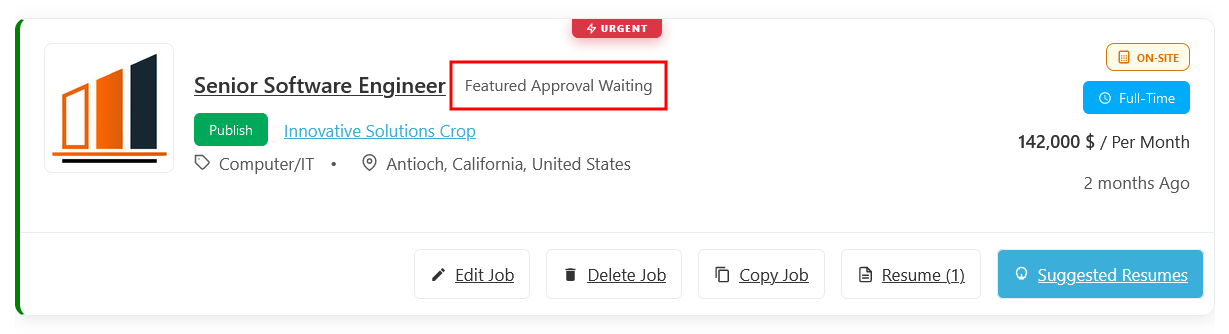
The page displays a list of jobs, where employers add jobs to the featured section by clicking the featured button. Although the status of this job is “Approved/Published,” its featured status is marked as “Featured Approval Waiting.” This indicates that the job is not yet marked as featured because it is pending administrator approval. Administrator approval is necessary for the job to be officially marked as featured.
Featured Jobs Approval Queue

To access the featured job approval process, navigate to Admin Dashboard > Dashboard Menu > Jobs > Approval Queue.
The Featured Job Approval Queue in WP Job Portal is a management section where administrators review and approve job listings that have been submitted as Featured Jobs. This approval process ensures that only legitimate and high-quality featured listings receive premium placement on the website. Until approval is granted, featured jobs remain in a pending state and are not displayed as featured to job seekers.
When a featured job is submitted and the portal requires administrative approval, the job enters the Job Approval Queue with a Pending status. The administrator can then review the job details, company information, salary, workplace type, and featured request before deciding whether to Approve or Reject it.
Management Actions
- The Featured Approve option in WP Job Portal allows administrators to approve a job’s request for featured status. When a featured request is approved, featured jobs are often highlighted with special badges shown higher in job listings, helping them attract more attention from job seekers.
- The Featured Reject option is used when an administrator decides not to grant featured status to a job listing. This action denies the featured request while allowing the job to remain a regular job listing if it has already been approved for publication.
- Administrators can also use the Edit button to modify job information.
- Delete removes the job from the queue.
- Force Delete permanently removes the job and its associated data from the system.