Job Fields In The WP Job Portal!
The Custom Job Fields feature in WP Job Portal allows administrators to create additional fields for job postings beyond the default fields provided by the system. This feature gives employers the flexibility to collect and display specific information that is important for their recruitment process. Custom fields can be added to the job submission form and displayed on the job detail page, making job listings more informative and tailored to business needs.
The Custom Job Fields feature improves flexibility and customization within WP Job Portal. Instead of being limited to standard job information, employers can gather industry-specific details and present more accurate job descriptions. This results in better communication between employers and job seekers and helps attract candidates who meet the exact requirements of the position.
Lastly, let’s dive into the process of adding custom fields to your job form to gather more specific information from employers and tailor job postings to your needs.
Job Fields
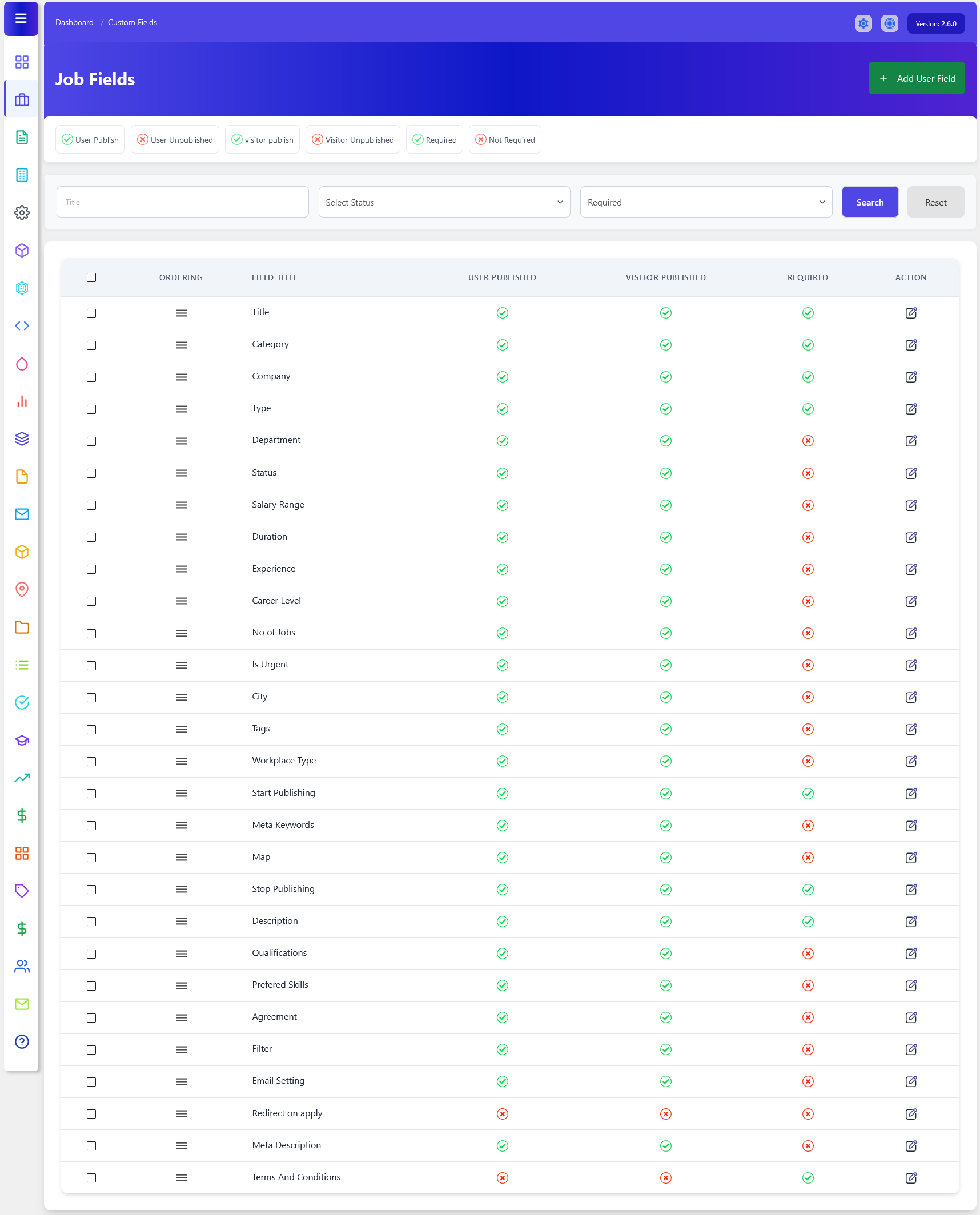
As an administrator, navigate to Admin Dashboard > Dashboard Menu > Jobs > Fields. To add a new field, click “Add User Field” on your field management screen.
The Job Fields section in WP Job Portal allows administrators to manage the fields that appear on the Add Job and Edit Job forms. This feature provides complete control over which job information is displayed, whether a field is required, and who can view it. By customizing job fields, administrators can tailor the job posting process to meet the specific requirements of their organization or industry.
Each field in the Job Fields list represents a piece of information that can be collected when creating a job. Administrators can decide which fields are necessary and how they should behave during job submission.
- The User Published option determines whether a field is visible to employers when they create or edit a job. If this option is enabled, employers can enter information into that field.
- The Visitor Published option controls whether the field is displayed on the public job detail page for job seekers.
- The Required setting allows administrators to make specific fields mandatory. When a field is marked as required, employers must provide a value before they can submit the job.
- The Edit action enables modifications to the field.
The Add User Field button allows administrators to create completely new custom fields.
Add User Field
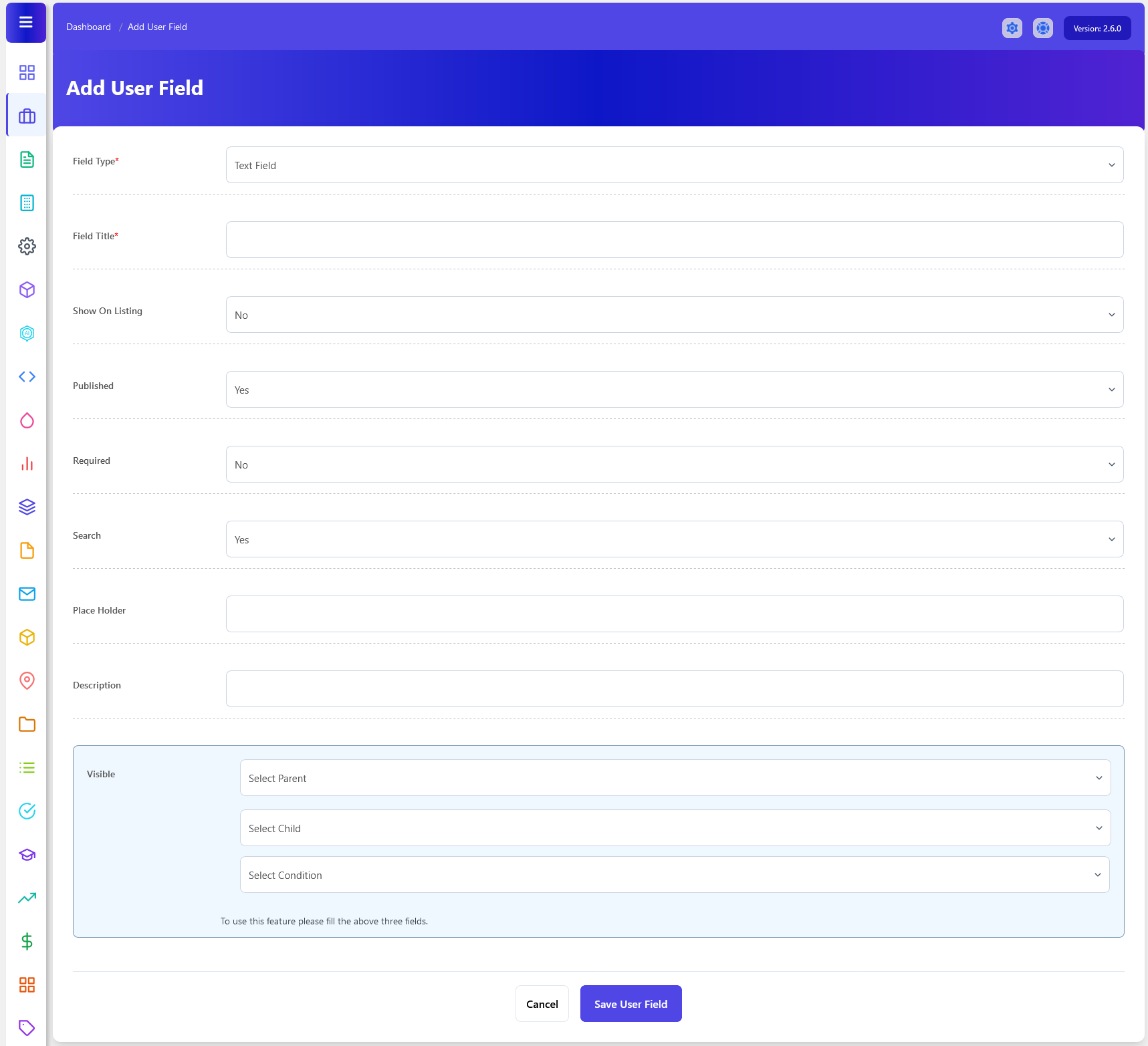
- On this screen, you can start by choosing the field type that suits your requirements. WP Job Portal supports different types of custom fields, including Text Fields, Text Areas, Drop-Down Lists, Checkboxes, Radio Buttons, Date Fields, Email Address, File Upload, and Multiple Selection Fields.
- After selecting the field type, provide a unique name for your field title.
- Furthermore, you have some options related to the field that you can implement for users, such as choosing whether this field should be visible on the jobs listing page. If selected “YES”, it will appear alongside the job details in the jobs listing.
- In the Published field, you can also decide whether to display this field on the job form or not.
- Another important choice is whether to make this field required. Setting it as “required” ensures that a job can’t be submitted without filling in this field.
- Searchable custom fields can also be used in job searches, helping job seekers find opportunities that match specific requirements.
- Once you’ve defined all the field details, simply click the “Save Field” button. Your new field will now be added to the list of fields and will be visible on the job form.
Visible User Fields
Let’s now add one more field of a different type.
- To add a new one, we’ll begin by making a field selection. In this case, let’s choose a drop-down field.
- After the field selection, provide it with a relevant name.
- Similarly, you can decide whether this field should appear on the job listing and job form.
- Setting it as “required” ensures that a job can’t be created without filling in this field.
- Next, proceed to add the corresponding values for the drop-down field.
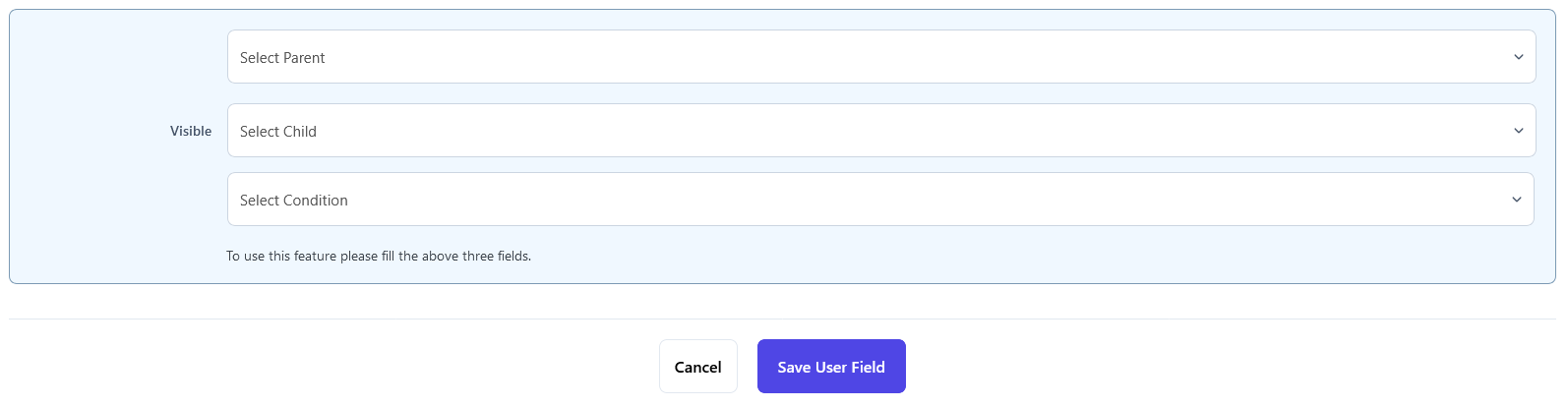
- For added personalization, you can set visibility conditions for the field. These conditions depend on three parameters: ‘parent,’ ‘child,’ and the specific condition.
- After setting up parameters related to the field, save the field. The field has been successfully created and will now be available on the job form.
Fields Ordering
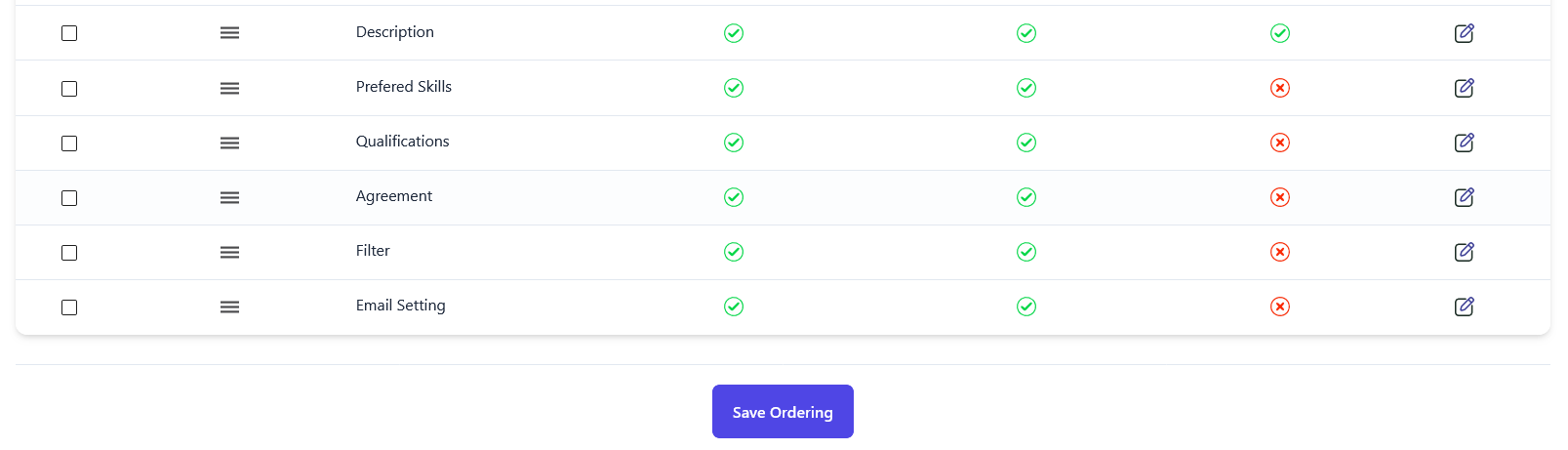
You can also adjust the order of your custom fields on the job form, deciding where you want to show these fields. Once you change the field order and save it, the fields on the job form will align with your preferences. And that’s it! By following these comprehensive steps, you can customize your job forms with additional fields to suit your needs.